이번에는 단순한 텍스트 파일 대신, 스타일과 스크립트가 포함된 index.html을 작성해서 간단한 웹 페이지를 배포한다.
1) index.html 생성
작업 경로(/home/username/dockerfile)에 nano 편집기를 열어 index.html 파일을 작성하고 저장한다.
ChatGPT 등을 이용해 간단한 CSS와 JavaScript가 포함된 HTML 파일을 작성한다.
예시:
<!DOCTYPE html>
<html lang="ko">
<head>
    <meta charset="UTF-8">
    <meta name="viewport" content="width=device-width, initial-scale=1.0">
    <title>My Custom Docker Page</title>
    <style>
        body {
            font-family: 'Segoe UI', Tahoma, Geneva, Verdana, sans-serif;
            background-color: #f4f4f9;
            margin: 0;
            display: flex;
            justify-content: center;
            align-items: center;
            height: 100vh;
            color: #333;
        }
        .container {
            background-color: white;
            padding: 2rem 3rem;
            border-radius: 15px;
            box-shadow: 0 4px 6px rgba(0,0,0,0.1);
            text-align: center;
            max-width: 400px;
        }
        h1 {
            color: #007bff;
            margin-bottom: 1rem;
        }
        p {
            line-height: 1.6;
            color: #666;
            margin-bottom: 2rem;
        }
        .btn {
            background-color: #007bff;
            color: white;
            border: none;
            padding: 10px 20px;
            font-size: 1rem;
            border-radius: 5px;
            cursor: pointer;
            transition: background-color 0.3s;
        }
        .btn:hover {
            background-color: #0056b3;
        }
        .status {
            margin-top: 15px;
            font-size: 0.9rem;
            font-weight: bold;
            color: #28a745;
            display: none;
        }
    </style>
</head>
<body>

    <div class="container">
        <h1>🐳 Hello Docker!</h1>
        <p>
            이미지가<br>
            컨테이너에서 실행 중입니다.
        </p>
        <button class="btn" onclick="checkStatus()">상태 확인하기</button>
        <div id="statusMsg" class="status">시스템 정상 작동 중! ✅</div>
    </div>

    <script>
        function checkStatus() {
            const msg = document.getElementById('statusMsg');
            msg.style.display = 'block';
            alert('자바스크립트도 잘 작동합니다!');
        }
    </script>
</body>
</html>
2) Dockerfile2 작성
FROM    ubuntu:16.04
RUN     apt update && apt -y install apache2
COPY    index.html /var/www/html/
WORKDIR /var/www/html/
EXPOSE  80
CMD     ["apachectl", "-D", "FOREGROUND"]
3) 이미지 빌드
root@host:/home/username/dockerfile# docker build -f Dockerfile2 -t my-website:1.0 ./
4) 컨테이너 실행
root@host:/home/username/dockerfile# docker run --name website-3 -p 7000:80 -d my-website:1.0
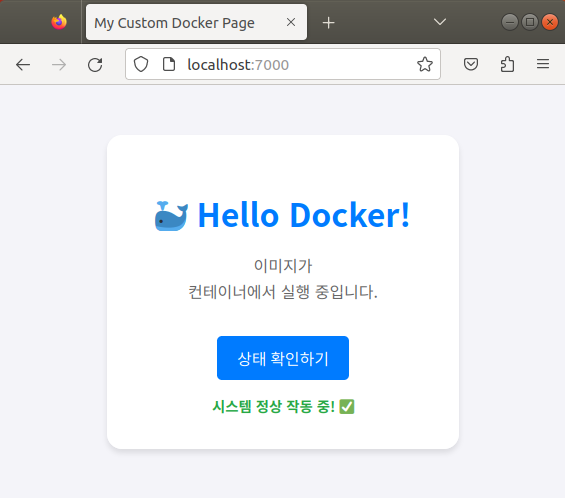
이제 브라우저에서 localhost:7000으로 접속하면 작성한 HTML 페이지가 뜨는 것을 확인할 수 있다.
'AI Journey > 클라우드' 카테고리의 다른 글
| [Docker] 이미지 커밋(commit)과 Docker Hub 공유(push) (0) | 2026.01.07 |
|---|---|
| [Docker] Private Registry 구축 및 이미지 배포 워크플로우 (0) | 2026.01.07 |
| [Docker] Dockerfile을 이용해서 이미지 빌드하고 실행하기 (2) - Apache (0) | 2026.01.07 |
| [Docker] Dockerfile을 이용해서 이미지 빌드하고 실행하기 (1) - Nginx (0) | 2026.01.07 |
| [Docker] Volume을 활용한 정적 웹사이트 배포와 컨테이너 간 데이터 공유 (0) | 2026.01.06 |


